
 By
By 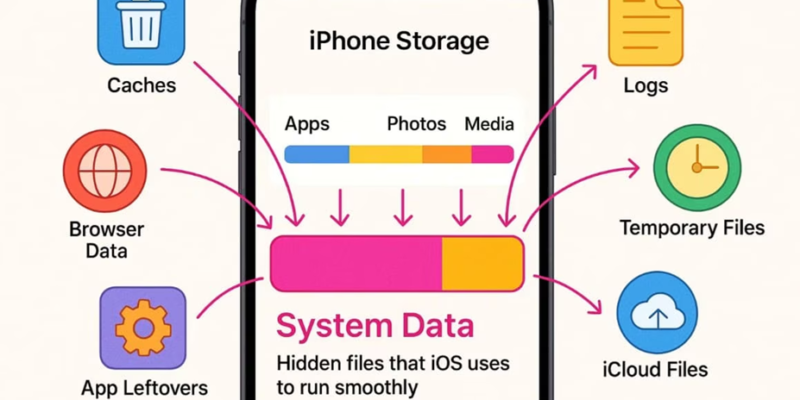
If you have ever found a category labeled “System Data” consuming 20+ gigabytes on your device, you are not alone. Learning how to reduce system data on iPhone involves managing the caches, logs, and streaming buffers that the operating system accumulates over time to reclaim that lost storage space.
The honest upfront answer: you cannot delete System Data directly. iOS does not give you a ‘Clear System Data’ button. However, several indirect methods reliably reduce it – with clearing Safari website data, offloading and reinstalling large apps, and restoring the iPhone from an iCloud backup being the three most effective approaches. Most users can reclaim 3-8GB with targeted actions; a full restore can recover 10GB+ in extreme cases.
What Is System Data on iPhone, Exactly?
Apple describes System Data (called ‘Other’ on older iOS versions) as storage used by system caches, logs, preferences, and Siri voices. In practice, it is a bucket that catches:
- Safari cache and website offline data – downloaded page assets, stored media, cookies
- Streaming app caches – Netflix, Apple TV, Spotify, and similar apps buffer content locally
- Siri intelligence data – personalised suggestions, voice model data
- System logs – diagnostic and crash logs that accumulate over time
- Mail caches – downloaded email attachments and offline message data
- Spotlight index data – search index for on-device content
- App-specific caches that iOS classifies as system-level rather than app-level
The category grows with normal use. It also grows faster if you stream a lot of video, use Siri heavily, or have had the same iPhone for several years without a full restore.
How to Check Your Current System Data
- Open Settings on your iPhone
- Tap General → iPhone Storage
- Wait for the bar chart to fully load (it takes 10-15 seconds to render accurately)
- Scroll down – the coloured bar at the top shows storage categories
- ‘System Data’ appears as a grey segment – tap it to see the reported size
Note: the size shown is sometimes inaccurate immediately after actions – wait 5-10 minutes after clearing anything before re-checking, as iOS recalculates storage asynchronously.
Methods to Reduce System Data: Ranked by Effectiveness
Method 1 – Clear Safari Website Data (5-10 minutes, often recovers 1-4GB)
- Go to Settings → Safari → Clear History and Website Data
- Confirm the prompt – this clears browsing history, cookies, and all cached website data
- Alternatively for more granular control: Settings → Safari → Advanced → Website Data → Remove All Website Data
- Impact: significant for heavy Safari users; moderate for those who primarily use Chrome or other browsers
Method 2 – Offload and Reinstall Large Apps (10 minutes, often recovers 1-5GB per app)
- Go to Settings → General → iPhone Storage → tap any large app
- Select ‘Offload App’ – this removes the app binary but keeps your data and documents
- Re-download the app from the App Store
- Why this works: apps accumulate internal caches over months that offloading and reinstalling clears. Streaming apps like Spotify, Netflix, and YouTube are the biggest culprits.
- Do this for your 5-10 largest apps and run Method 1 after for maximum effect
Method 3 – Delete and Re-add Mail Accounts (5 minutes, can recover 1-3GB)
- Go to Settings → Mail → Accounts → select an account → Delete Account
- Re-add the account after – this clears locally cached mail data that accumulates invisibly
- Most effective if you use a high-volume email account that downloads attachments
Method 4 – Reset Network Settings (2 minutes, modest effect)
- Settings → General → Transfer or Reset iPhone → Reset → Reset Network Settings
- This clears Wi-Fi passwords, Bluetooth pairings, and network caches – you will need to re-enter Wi-Fi passwords
- Impact is usually modest (100MB-500MB) but worth doing as part of a broader cleanup
Method 5 – Restore from iCloud Backup (2-4 hours, the nuclear option)
- Back up your iPhone to iCloud: Settings → [Your Name] → iCloud → iCloud Backup → Back Up Now
- Go to Settings → General → Transfer or Reset iPhone → Erase All Content and Settings
- Set up as new and restore from the backup you just created
- Impact: the most effective method – a fresh iOS install eliminates accumulated system cruft that targeted methods cannot reach. Many users recover 8-15GB this way.
- Use this if other methods have not made a meaningful dent and you have 2-4 hours to let the device restore
What Does NOT Work (Common Myths)
| Supposed Fix | Reality |
|---|---|
| Turning iPhone off and on again | No effect on System Data – does not clear any caches |
| Deleting apps (without offloading) | Removes app data but not system-level caches |
| Reducing iCloud Photo Library | Photos are separate from System Data – no effect |
| Third-party ‘cleaner’ apps | iOS sandboxing prevents any app from accessing system caches – these apps do nothing beyond what you can do manually |
| Disabling iCloud | Can reduce some sync-related data but does not directly clear System Data |
| Clearing RAM (home button triple-press tricks) | RAM and storage are different – RAM management has no storage effect |
How Much Can You Realistically Reclaim?
| User Type | Expected Savings (Targeted Methods) | Expected Savings (Full Restore) |
|---|---|---|
| Light user, phone < 1 year old | 1-3GB | 3-6GB |
| Moderate user, 1-2 years old | 3-6GB | 6-10GB |
| Heavy user (lots of streaming/Safari) | 4-8GB | 8-15GB |
| Phone 3+ years, never restored | 5-10GB | 10-20GB+ |
Final Tips
- Repeat the Safari clear + offload/reinstall cycle every 6-12 months to prevent System Data from ballooning again
- If you use the iPhone as a media device, set streaming apps to lower cache limits in their individual settings (Spotify, Netflix, and Apple Music all have in-app storage limit settings)
- Consider enabling ‘Offload Unused Apps’ in Settings → App Store – iOS automatically offloads apps you have not opened in a while, keeping their cache from growing indefinitely
- A full restore every 2-3 years is good iPhone hygiene regardless of System Data – it clears accumulated cruft and often makes the device feel noticeably faster











Comments